
LinuxSampler 2.5.0
LinuxSampler 2.5.0 and friends were released on Aug 5th 2026. A bit more than a year has passed since the previous feature release.
Most of the changes in this LinuxSampler release serve as backend changes for new features in Gigedit. So let me just redirect you at LinuxSampler's ChangeLog file for a detailed list of new features and fixes, and without further ado, let's dive-in, to actually see the new features in action.
Gigedit 1.3.0
This new feature release of Gigedit is all about usability improvements, most of them of visual nature.
Multi-Region Selection
By either Ctrl-clicking or Shift(⇧)-clicking you can now select (or unselect) multiple regions, such that you can change sound parameters of specifc regions simultaniously while working with the editor's right-hand side parameters pane. The ironic thing here is that we already had multi-selection for dimension regions for a very long time, exact in the same way by Ctrl/Shift-clicking individual dimension regions (a.k.a. "cases") from the editor's dimension region pane on the lower section of the editor. But for some reason we had never extended this multi-selection concept to the regions level, except that we had the "all regions" checkbox basically from the beginning of course.

You can naturally also combine multi-region selection with multi-dimension-region selection, like say you only wanted to change parameters of these certain regions, and of those regions only those specific dimension regions.
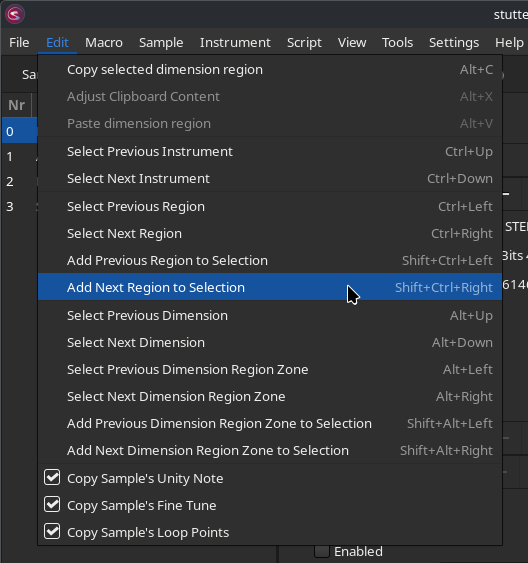 This is not limited to mouse operations, there are also keyboard accelerators
for all these multi-selection operations which you can all find listed from
the app's "Edit" menu.
This is not limited to mouse operations, there are also keyboard accelerators
for all these multi-selection operations which you can all find listed from
the app's "Edit" menu.
Alternative Values
The next important new feature(s) in this release help you not getting lost with complex .gig sounds by handling so called "alternative values".
The challenge with the Giga format has always been its potential massive amount of so called "cases", that is the sheer amount of different sound parameters for different situations. Because in the end, the sound editor can only show you for each sound parameter only exactly one value at a time, right? So what is that sound parameter value that you currently see on the right-hand side of the editor? Because remember, the editor allows multi-selection? The answer is, the editor was always just showing you exactly the one and only parameter value of the so called "primary selection" exclusively, that is exactly the case that is highlighed in all-blue (whereas the other selected "cases" are marked in blue-hatched pattern). So this restriction also applies when there are multi-selected regions / dimension regions; they would also always be limited to show the parameter value of exactly one "case" (or one dimension region if you will).
But here is the catch: all other currently selected regions and selected dimension regions might have different values for the respective sound parameter. So the only way to find out was going through all of them manually by selecting each one of those regions and dimension regions individually and see if the parameter value displayed would change.
 Let's just stop this nonsense: as soon as you have multi-selection applied,
the editor is now highlighting all sound parameters that have multiple
different values ("alternative values") in bronze coloured and bold font,
based on the current multi-selection of regions / dimension regions that is.
Let's just stop this nonsense: as soon as you have multi-selection applied,
the editor is now highlighting all sound parameters that have multiple
different values ("alternative values") in bronze coloured and bold font,
based on the current multi-selection of regions / dimension regions that is.
When you then move the mouse pointer over a highlighted parameter, it then
now also shows you their specific, alternative parameter values, however not
in the parameter entry box, but instead directly within the zones (or cells)
of the respective dimension regions on the lower section of the screen, and
additionally in compact coloured form on the region cells (that is on a higher
structural level).
This approach has the advantage that you not only see the raw parameter values
alone, but also to which dimension regions (and their parent regions) those
are currently assigned to exactly, such that you can immediately see their
assigned locations as well.
And as all sound parameters are distributed over a number of tabs in Gigedit,
the respective tab itself is highlighed in bronze and bold as well if any of
the tab's parameters is highlighted in turn, which further improves keeping
oversight, since only one tab can be displayed at a time.
Hopefully these new features make working on even the most complex
instruments in the Giga format much more intuitive from now on.
Prelistening
So far we have just talked about parameters. But what about samples? A complex Giga instrument not only has a massive amount of parameters, it typically also has a massive amount of samples. The previously introduced new features described above could help you with understanding complex multi-samples as well, in the sense that you can for instance go to the "Sample" tab on the right-hand side, move the mouse pointer over the "Sample" field, and then see which sample names are displayed in the individual dimension region cells below (and on the regions above). You can do the same by moving the mouse pointer over the sample group field by the way. However these are just names of the samples and their groups. For a musician it is more important though, how do they actually sound, which is often not obvious by just reading a name.
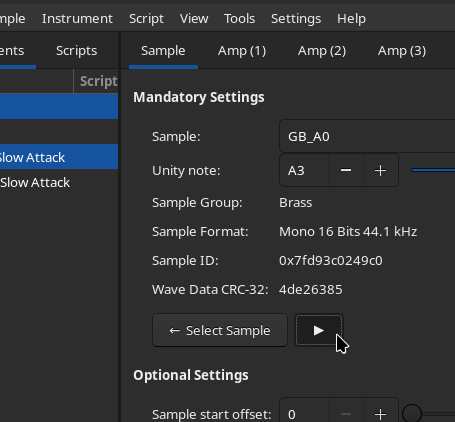 This is where the new "prelisten" features comes to play (literally): on the
"Sample" tab you now have a simple and probably self-explantory play button.
So while clicking and holding the play button, this specific sample is
played, and stopped as soon as you release the mouse button again.
This is where the new "prelisten" features comes to play (literally): on the
"Sample" tab you now have a simple and probably self-explantory play button.
So while clicking and holding the play button, this specific sample is
played, and stopped as soon as you release the mouse button again.
 However there is more: by Alt-clicking a dimension region on the lower section of the
screen, you can now also play their specific sample directly (without
changing selection) which allows you to understand very quickly how the
instrument is comprised of with different samples. It is important to
understand that this is really just playing this one specific sample, not
multiple samples. This is therefore especially useful for multi-layer combi
sounds, where you otherwise would have no easy way to understand how the
sound is comprised of with individual samples. Because for velocity splits
you could also trigger the right note with the right velocity to simulate the
respecitve "case", but with a multi-layered sound there was no conventional
way to just get one isolated sample of a multi-layer being played alone.
However there is more: by Alt-clicking a dimension region on the lower section of the
screen, you can now also play their specific sample directly (without
changing selection) which allows you to understand very quickly how the
instrument is comprised of with different samples. It is important to
understand that this is really just playing this one specific sample, not
multiple samples. This is therefore especially useful for multi-layer combi
sounds, where you otherwise would have no easy way to understand how the
sound is comprised of with individual samples. Because for velocity splits
you could also trigger the right note with the right velocity to simulate the
respecitve "case", but with a multi-layered sound there was no conventional
way to just get one isolated sample of a multi-layer being played alone.
Configurable UI Theme
In the previous maintenance releases of Gigedit there were numerous visual fixes when running Gigedit on a system with "dark mode" enabled. This release goes a bit further and allows you to override not only whether you want Gigedit to appear in dark or bright mode (independent of what is globally configured on your system), but also to override the UI theme to be used by Gigedit. Those two apperance settings can be configured via the two new submenus "View" → "Colors", and "View" → "Theme" respectively.


Following Subwindows
 There is another new submenu for configuring visual
behaviour: "View" → "Subwindows follow Main Window", if enabled then all
Gigedit child windows will automatically follow Gigedit's main window when
Gigedit's main window is being moved around on screen. That is the child
windows would automatically retain their relative position to Gigedit's main
window.
There is another new submenu for configuring visual
behaviour: "View" → "Subwindows follow Main Window", if enabled then all
Gigedit child windows will automatically follow Gigedit's main window when
Gigedit's main window is being moved around on screen. That is the child
windows would automatically retain their relative position to Gigedit's main
window.
Referenced Scripts
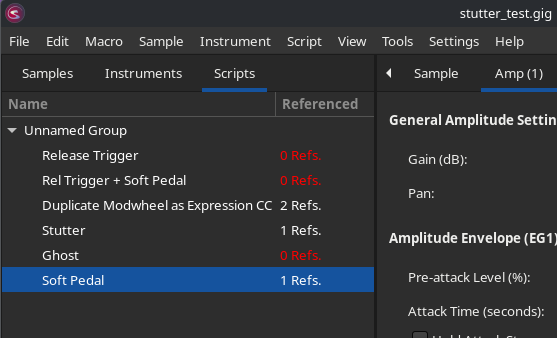 There is a new "Referenced" column in the "Scripts" tree view.
On the left-hand side of
Gigedit there are 3 tabs: "Samples", "Instruments" and "Scripts". The
"Scripts" tree view now shows a "Referenced" column for each
NKSP instrument script, this
number reflects how often that particular script is referenced by some
instrument. That way you can for instance easily see if a script is currently
not, or barely used.
There is a new "Referenced" column in the "Scripts" tree view.
On the left-hand side of
Gigedit there are 3 tabs: "Samples", "Instruments" and "Scripts". The
"Scripts" tree view now shows a "Referenced" column for each
NKSP instrument script, this
number reflects how often that particular script is referenced by some
instrument. That way you can for instance easily see if a script is currently
not, or barely used.
NKSP Diagnostics
The NKSP instrument script editor received configurabale diagnostics: As you might know, while typing new code into the NKSP code editor, all issues are automatically highlighted in real-time. What's new is that when you move the mouse pointer over some highlighed code issue, you can now also see the issue type category in squared brackets, along to the already existing detailed issue description of the tooltip.

And from the instrument script editor's new "Diagnostics" menu you can then configure how the sampler's parser shall handle those individual issue categories. You can configure warnings to be entirely ignored (in which case they are no longer highlighted in the code editor). The sampler's API also supports the opposite by allowing to promote warnings to errors, however this is currently not supported by the Gigedit UI. These diagnostic settings are currently saved as user preference for all your .gig files you are working on.

Furthermore, on the code editor's left hand side, issues are now visually prominently marked in red color for errors and yellow color for warnings respectively, so that you can more easily spot any kind of issues while scrolling a long instrument script, as this is more easy to perceive for the eye than having to spot these issues directly in the code section alone.
Auto-Highlight on Selection
 Another minor but actually very useful
feature in the NKSP editor is that wen you select a code portion (e.g. a
variable or a function), all other occurences of the same text string are now
automatically highlighted as well. This is very useful for instance to quickly
spot all code locations where a certain variable is currently used, or seeing
all callers of a certain function.
Another minor but actually very useful
feature in the NKSP editor is that wen you select a code portion (e.g. a
variable or a function), all other occurences of the same text string are now
automatically highlighted as well. This is very useful for instance to quickly
spot all code locations where a certain variable is currently used, or seeing
all callers of a certain function.
These were only the most note-worthy new features in this release of Gigedit. For a complete list of all new features and bug fixes, please refer to Gigedit's ChangeLog file.
libgig 4.6.0
Our fundamental file access C++ library libgig has also received some few noteworthy changes.
Increased Build Requirement
A C++14 compliant compiler is now required to build libgig from source.
Serialization in JSON Format
This release adds optional
JSON
support for serialized data generated with libgig's C++
Serialization framework
. A JSON encoded serialization is much more human-friendly to
read and to edit than the pre-existing custom
and semi-binary Srx encoding format. However the Srx
encoding format on the
other hand is from algorithmic point of view much simpler and faster and less
error prone, so it is still the default encoding format for serialized data
with this framework. The encoding format can be explicitly chosen via the new
Archive::format_t enum
(see API),
otherwise the right format is automatically selected.

Fixes
And last but not least there have been a few fixes for libgig. Please refer to libgig's ChangeLog file for more details.